Options pages for WordPress, without the code.
Create menus, settings pages and fields in an editor that is a pleasure to use. Whether you are a seasoned developer or just starting out, you are done in minutes, and it all runs on the WordPress Settings API.
Free · GPL · WordPress 6.9+ · PHP 8.1+
The editor
Build options pages the WordPress way.
The editor feels familiar from the first click, and inventive where it counts. No code to write, and nothing new to learn for you or your clients.
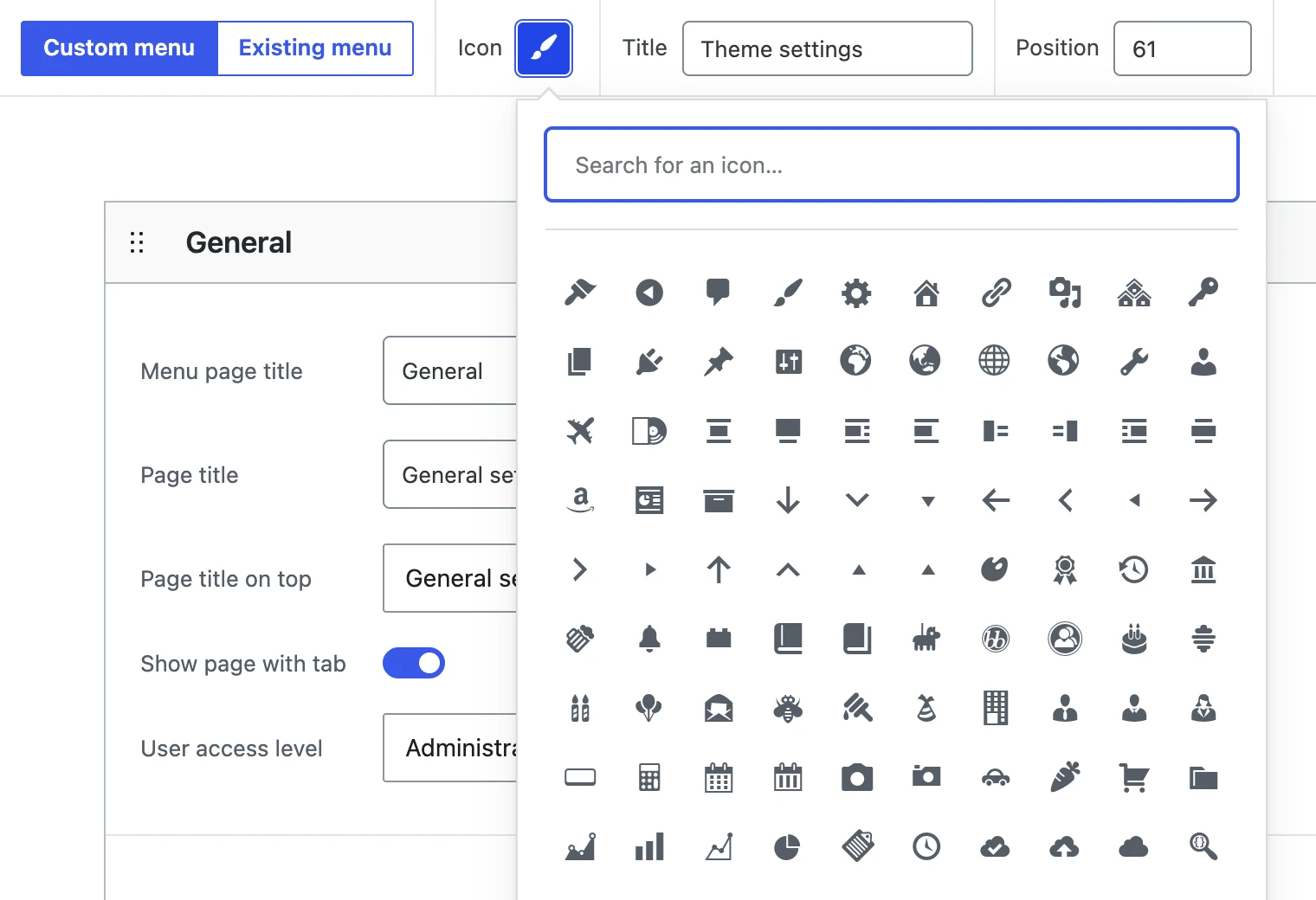
Start with a menu
Pick an icon, a title and a position, or add your pages to an existing menu such as Settings.
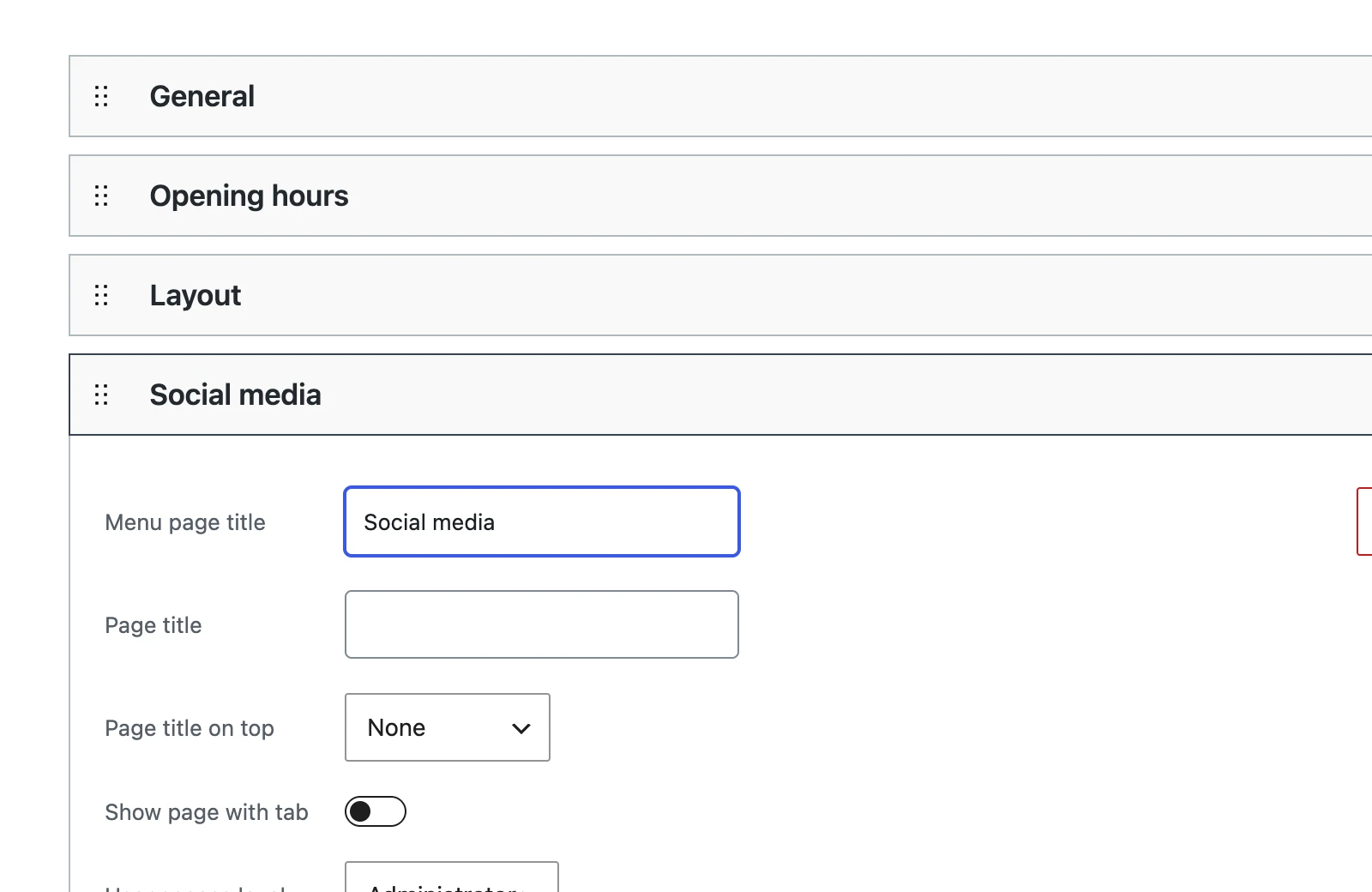
Add your pages
One page or several, with tabs to switch between them if you like. Drag them into the order you want.
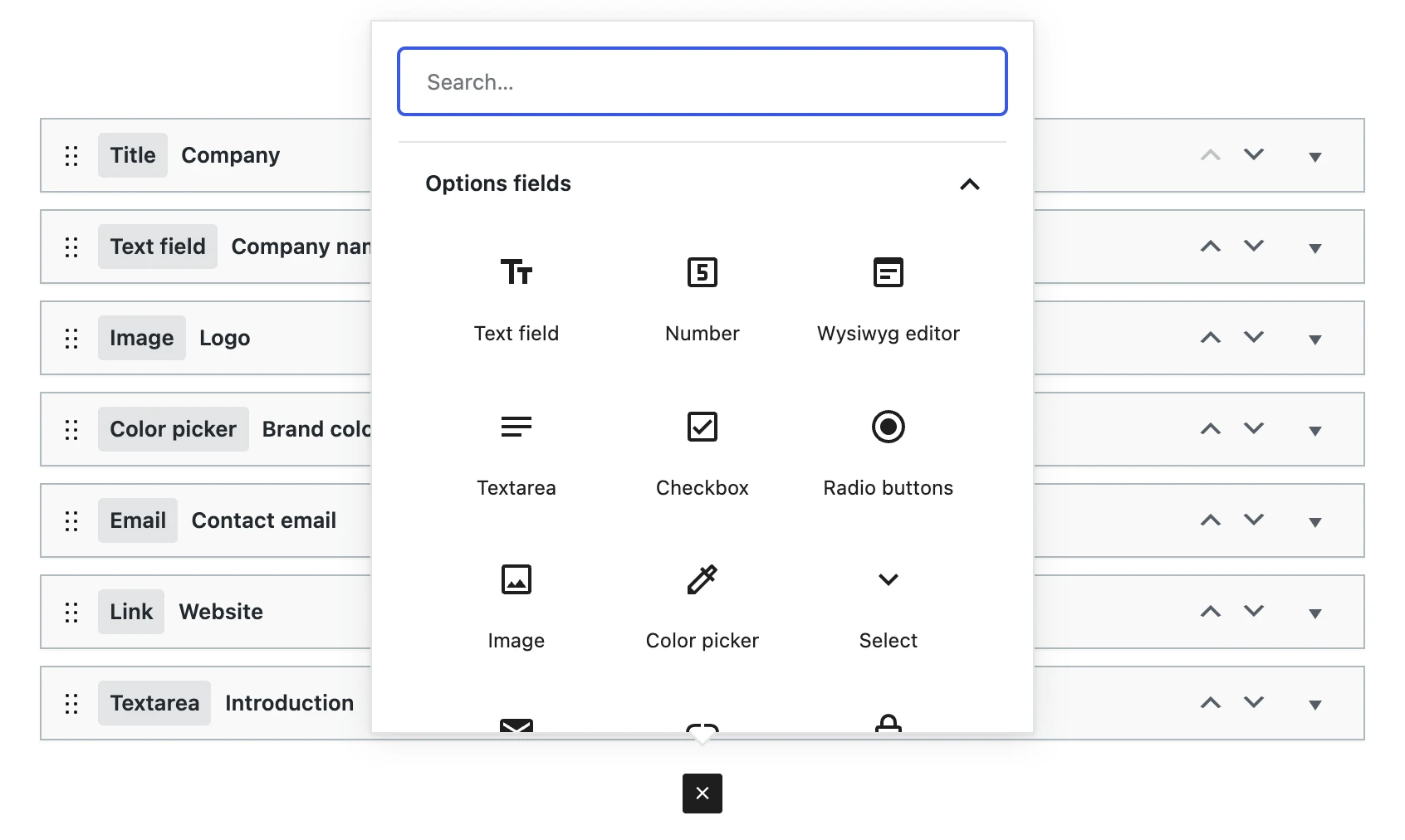
Every field, one click away
Click + and choose from 21 field types. Search, click, done.
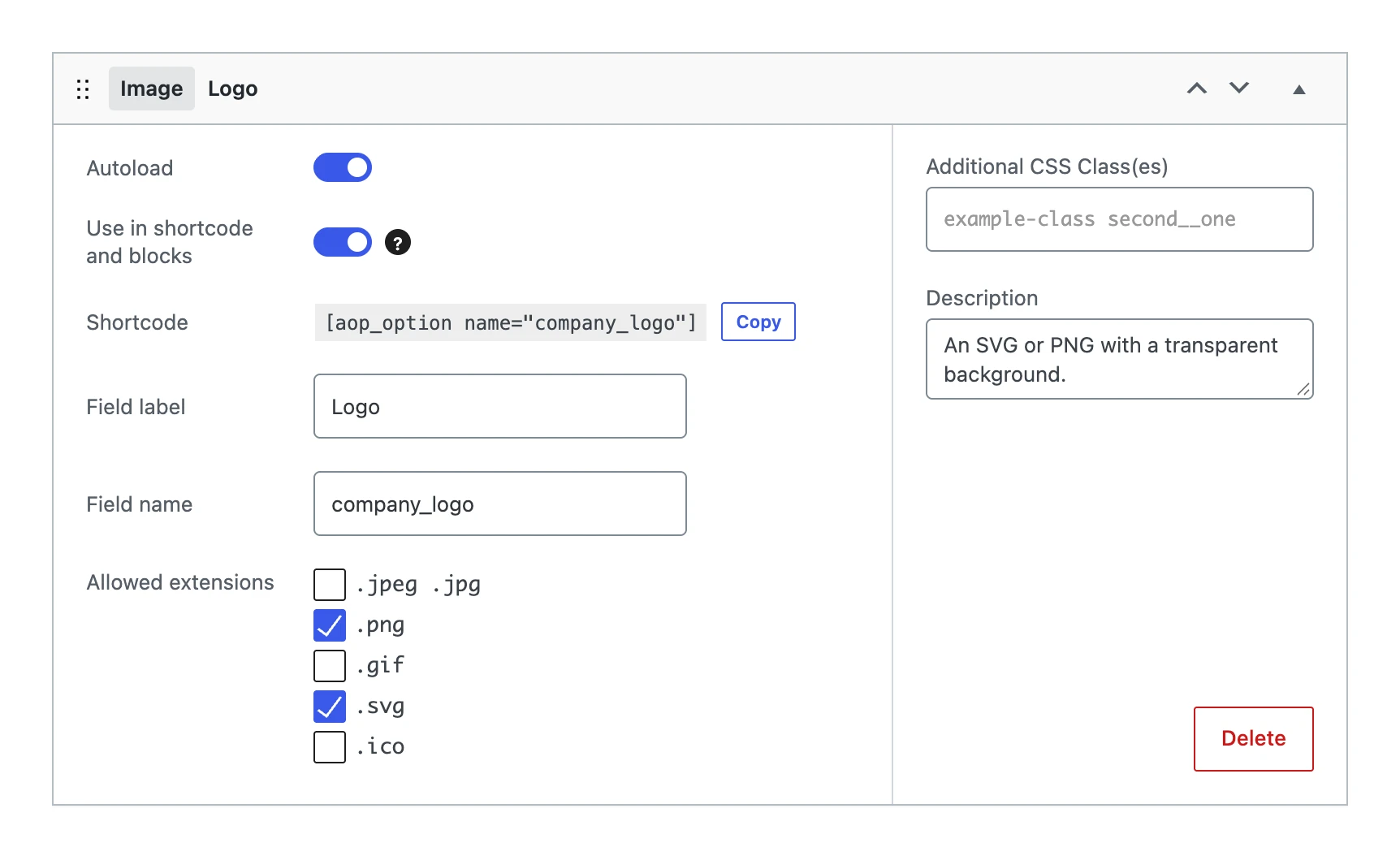
Configured in seconds
Field name, autoload, allowed file types and a shortcode to copy, all on one card.
Field types
Every field your settings need.
From a single line of text to images from the media library, with sensible validation for each of them. Need something else? Add your own type with the Field Types API.
All field types- Text field
- Textarea
- Wysiwyg editor
- Number
- Range
- Link
- Password
- Checkbox
- Radio buttons
- Select
- Button group
- Date
- Time
- Date and time
- Color picker
- Image
- File
- Title
- Description
- Horizontal rule
For your clients
Ready to hand over.
What you build is a native WordPress settings page. Your clients know how it works, and you know where everything is.
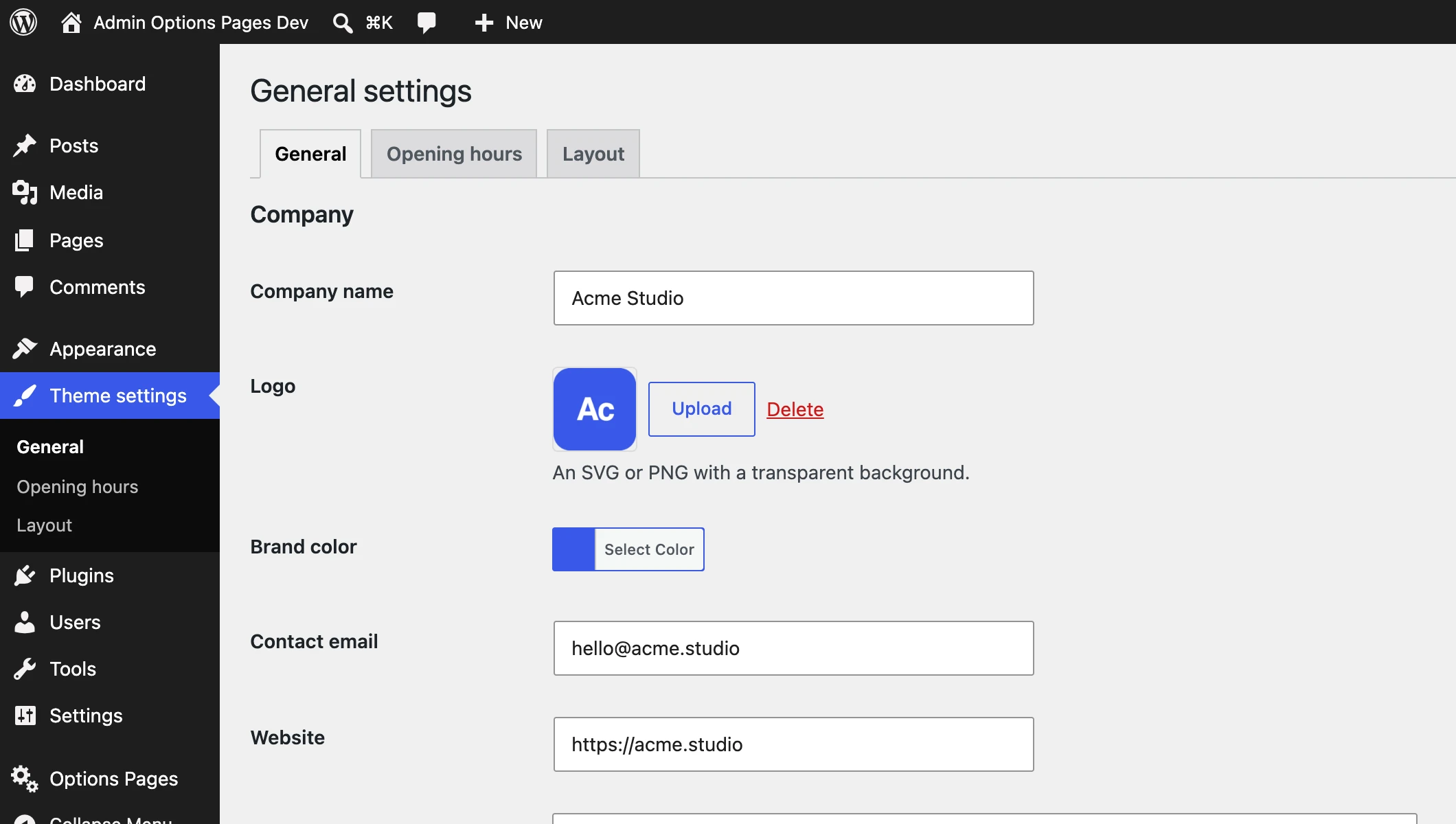
A real WordPress settings page
Tabs, sections and the familiar Save Changes button, in a menu of its own.
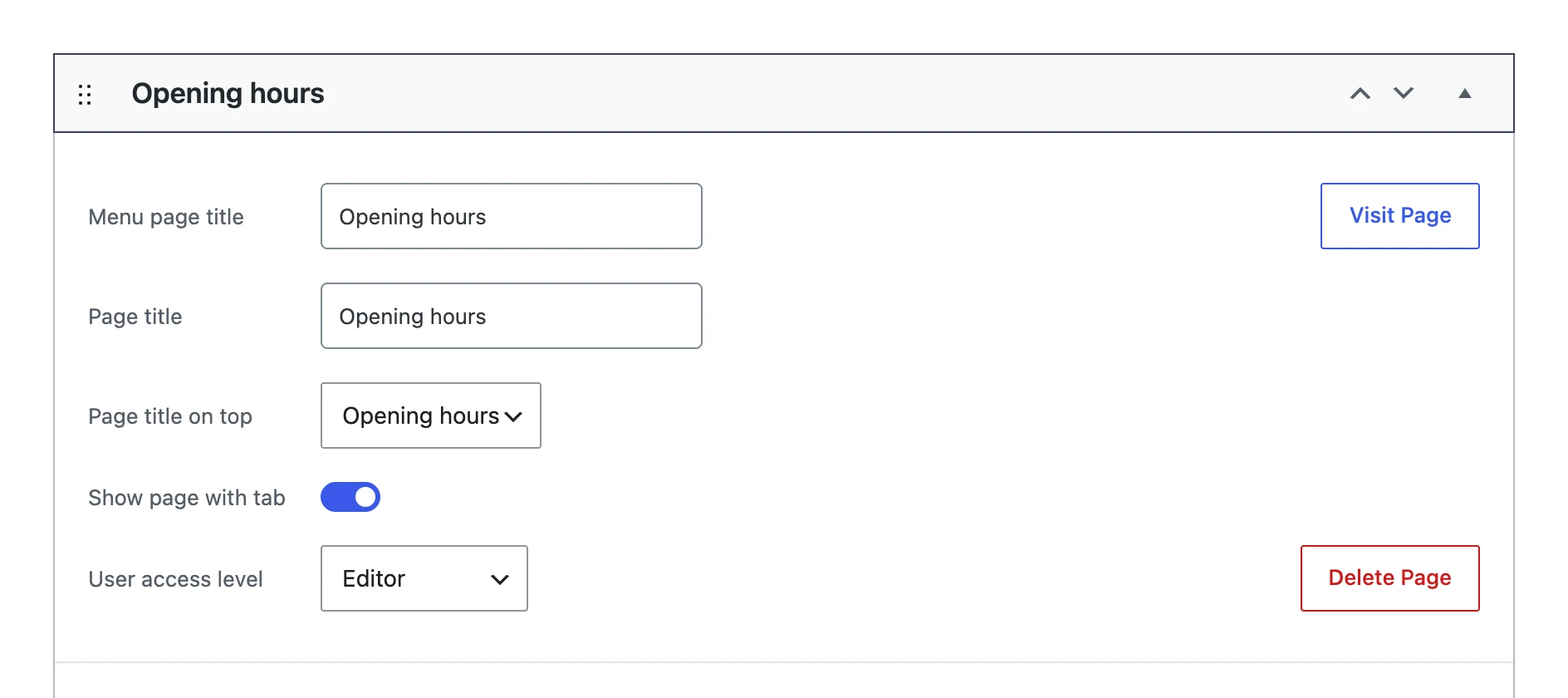
The right people on the right pages
Let editors change the opening hours, and keep everything else for administrators.
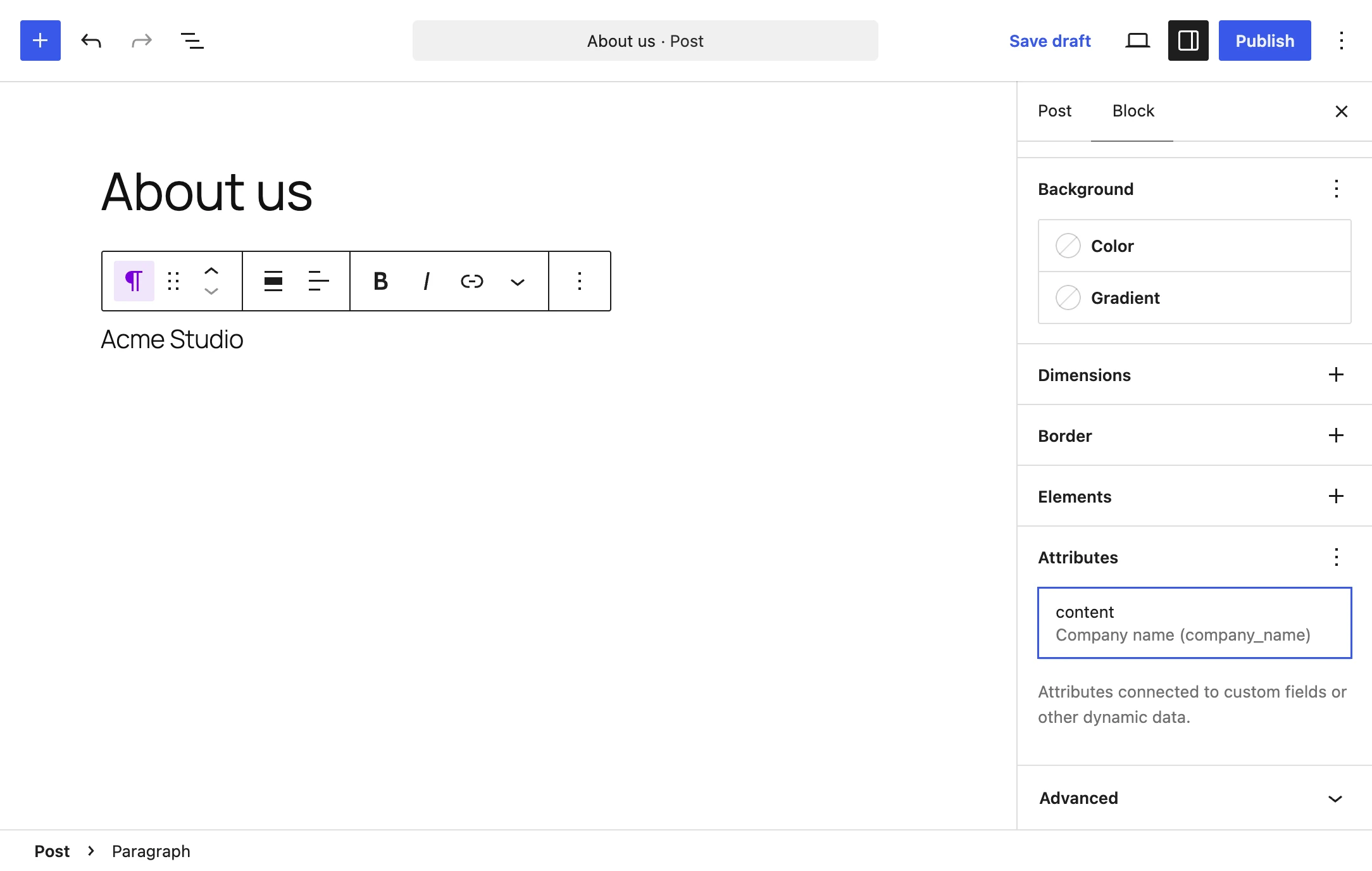
Values in every block
Bind a paragraph, heading, button or image to a field. Change the value once, see it everywhere.
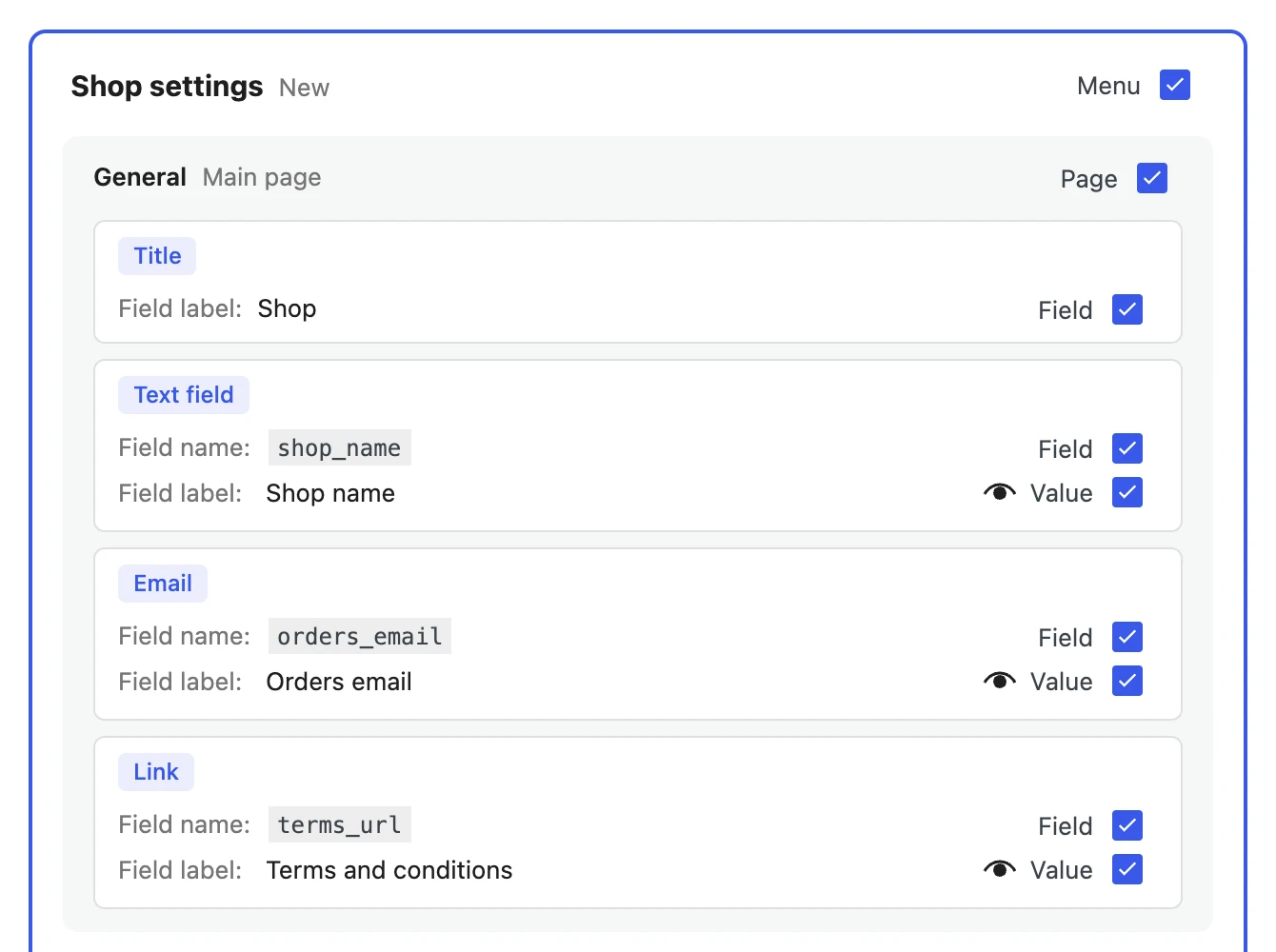
Reuse your setup on the next site
Export menus with their values and import them on the next site. Check what comes along: pages, fields and values.
Reviews
Loved by the people who use it.
Rated 5 out of 5 on WordPress.orgVery easy to make a custom admin menu with media included
“I used to create my own admin menu in the past by coding it from the scratch. It took a while and I struggled to create a working media upload button. … great work.”
Saves a lot of time and hassle!
“If you want to add a simple settings page, the WordPress settings API is quite a challenge. With this plugin you no longer need the API and you can easily create the settings page from the backend. Saves a lot of time and hassle! Very nice plugin.”
Love this plugin
“I used this plugin to create new options so as to not have to change the hard code each time I need to make an update. Works great and allows me to organize related options by tabs.”
For developers
No lock-in. Just WordPress.
Options are stored with the Options API and registered with the Settings API. Change saved values with filters, or register your own field types with the same API the built-in types use.
- Filters for every saved value
- The Field Types API for your own field types
- Import and export as JSON
- Values in shortcodes and Block Bindings
add_filter(
    'aop_sanitized_option_contact_email',
    function ($value, $field, $raw) {
        return strtolower($value);
    },
    10, 3
);

// Your own field type
add_action('aop_register_field_types', function ($registry) {
    $registry->register(\MyPlugin\UrlField::class);
});Is Admin Options Pages free?
Do I need to write code?
get_option() as well. See How to start.
Can my clients use the options pages?
Can I reuse a setup on another site?
Does it work with my theme?
get_option(). The shortcode works wherever WordPress runs shortcodes, and Block Bindings work in the block editor and the site editor.
Does it make my website slower?
What happens to my values when I deactivate the plugin?
get_option() keeps working. Only the options pages, the shortcode and the block bindings are gone until you activate the plugin again. Deleting the plugin does remove its options, so export them first if you want to keep them.
Where can I report a bug or ask a question?
Your first options page in a few minutes.
Install the plugin, add a menu with a field and fill it in. The guide takes you through it, step by step.